What I made
A really simple MP3 player on a Raspberry PI that displays the song and artists and also displays play/pause/next/previous. It is all controlled with an analog joystick.
You can see how it works: https://youtu.be/rmaHO2rLwvg
Why?
Why I used these components? It is what I had without going to the store. This display was included in a kit. The analog joystick was because I didn't have enough buttons. I know the Rapsberry PI is totally useless for audio playback.
What is used?
The Raspberry PI(2)
PCD8544:

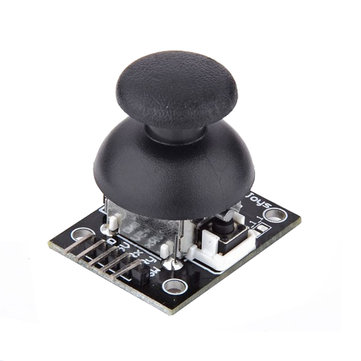
Analog joystick:
The AD converter PCF8591

The hook it up
Connect the PCF8591 board with the VCC to the 3.3V from the RPi. GND to the GND of the RPi.
Connect the PCF8591 board with SCL to the SCL from the RPi
Connect the PCF8591 board with SDA to the SDA from the RPi
Connect the PCF8591 board AIN2 and AIN3 to GND
Connect the joystick board with the + to the 3.3V from the RPi. GND to the GND of the RPi.
Connect the joystick board B (button) to pin 25 on the RPi
Connect the joystick board X to the AIN0 on the PCF8591 board
Connect the joystick board Y to the AIN1 on the PCF8591 board
Now comes the hard part, connecting the PCD to the Rapsberry. This picture was very helpful.

The first column is counted from the top left as seen on the picture so:
1-2
3-4
5-6
ans so on.
Pin 1 is 3.3V
Pin 25 is GND
The code:
 #!/usr/bin/env python


 #basic needs
 from smbus import SMBus
 from time import sleep
 from socket import error as SocketError

 #Needed for the PMD8544/NokiaLCD
 import Adafruit_Nokia_LCD as LCD
 from PIL import Image
 from PIL import ImageFont
 from PIL import ImageDraw

 #This is needed for the PCF85
 from smbus import SMBus

 #Needed for reading the button
 import RPi.GPIO as GPIO

 #Needed for the MPDClient
 from mpd import (MPDClient, CommandError)

 ## SETTINGS
 ##
 HOST = 'localhost'
 PORT = '6600'
 PASSWORD = False
 ###


 #Set some basic values
 bus = SMBus(1) #This is for the PCF8591
 last_reading_1 = -1
 last_reading_2 = -1
 volume = 70
 status = "stop"

 # This is for the button of the analog joystick.
 GPIO.setmode(GPIO.BCM)
 GPIO.setup(25, GPIO.IN)

 # Raspberry Pi software SPI config:
 SCLK = 17
 DIN = 18
 DC = 27
 RST = 23
 CS = 22
 client = MPDClient()


 #This function displays the icons
 def display(action):
     #clean display first
      draw.rectangle((0,0,LCD.LCDWIDTH,LCD.LCDHEIGHT), outline=255, fill=255)
     disp.image(image)
     disp.display()
      #Set the right icon to show:
      if (action == "volumeplus"):
          draw.rectangle((25,24,61,28), outline=0, fill=0)
         draw.rectangle((40,12,46,40), outline=0, fill=0)
     elif (action == "volumeminus"):
           draw.rectangle((25,24,61,28), outline=0, fill=0)
      elif (action == "play_pause"):
           if (status == "play"):
             draw.rectangle((33,12,40,34), outline=0, fill=0)
             draw.rectangle((43,12,50,34), outline=0, fill=0)
         else:
             draw.polygon([(31,10), (51,22), (31,34)], outline=0, fill=0)
      elif (action == "next"):
           draw.polygon([(21,10), (41,22), (21,34)], outline=0, fill=0)
         draw.polygon([(41,10), (61,22), (41,34)], outline=0, fill=0)
      elif (action == "previous"):
           draw.polygon([(21,22), (41,10), (41,34)], outline=0, fill=0)
         draw.polygon([(41,22), (61,10), (61,34)], outline=0, fill=0)
      disp.image(image)
     disp.display()
      sleep(0.5) # the time the icon is showed
      #below the icon is cleared from the screen again.
      draw.rectangle((0,0,LCD.LCDWIDTH,LCD.LCDHEIGHT), outline=255, fill=255)
      disp.image(image)
     disp.display()


 #This function is to compensate for the non-linear volume controll of the
 #Raspberry PI
 def logvolume(action, volume):
      if (volume <=50):
           if (action == "volumeplus"):
                volume = volume + 20
           else:
                volume = volume - 20
      elif (volume >= 50 and volume <= 70):
           if (action == "volumeplus"):
             volume = volume + 10
         else:
             volume = volume - 10
      elif (volume >=70 and volume <= 79):
           if (action == "volumeplus"):
             volume = volume + 5
         else:
             volume = volume - 5
     elif (volume >=80 and volume <= 89):
         if (action == "volumeplus"):
             volume = volume + 2
         else:
             volume = volume - 2
      elif (volume >=90):
           if (action == "volumeplus"):
             volume = volume + 1
         else:
             volume = volume - 1
      elif (volume == 100):
           volume = 100
      return(volume)


 #In this function the core functionality is called.
 #     - It calls the logaritmic volume controll
 #      - It calls the screen action

 def action(action, volume):
      if (action == "volumeplus"):
           volume = logvolume(action, volume)
           client.setvol(volume)
      if (action == "volumeminus"):
           volume = logvolume(action, volume)
         client.setvol(volume)
      if (action == "play_pause"):
           if (status == "play"):
             client.pause()
         else:
             client.play()
      if (action == "next"):
         client.next()
      if (action == "previous"):
         client.previous()
      display(action)
      return(volume)


 #This connects the MCP client to the deamon
 try:
     client.connect(host=HOST, port=PORT)
     print "connect"
 except SocketError:
     print "socketerror"
     exit(1)


 # Software SPI usage (defaults to bit-bang SPI interface):
 disp = LCD.PCD8544(DC, RST, SCLK, DIN, CS)

 # Initialize library.
 disp.begin(contrast=60)

 # Clear display.
 disp.clear()
 disp.display()

 # Create image buffer.
 # Make sure to create image with mode '1' for 1-bit color.
 image = Image.new('1', (LCD.LCDWIDTH, LCD.LCDHEIGHT))

 # Get drawing object to draw on image.
 draw = ImageDraw.Draw(image)

 # Draw a white filled box to clear the image.
 draw.rectangle((0,0,LCD.LCDWIDTH,LCD.LCDHEIGHT), outline=255, fill=255)

 # Load default font.
 #font = ImageFont.load_default()

 # Alternatively load a TTF font.
 # Some nice fonts to try: http://www.dafont.com/bitmap.php
 font = ImageFont.truetype('visitor1.ttf', 9)
 font1 = ImageFont.truetype('visitor1.ttf', 12)

 #Set basic volume to 60%
 client.setvol(volume)

 while True:
      bus.write_byte(0x48, 0x40) #This writes to the channel that needs to be read
      reading = bus.read_byte(0x48) #This reads the value from the channel
      #Make sure that it is only read if it is different than before
     if(abs(last_reading_1 - reading) > 2):
           if (reading >= 230):          #This about 90% of the joystick change of value
                #Calls the action function and returns the volume
             volume = action("volumeminus", volume)
           elif (reading <= 30): #This is also 80% the other way around
                volume = action("volumeplus", volume)
           last_reading_1 = reading
     #Now the other axis needs to be read so it writes to the other channel
     bus.write_byte(0x48, 0x41)
     reading = bus.read_byte(0x48)
     if(abs(last_reading_2 - reading) > 2):
         if (reading >= 230):
                action("next", volume)
         elif (reading <= 30):
                action("previous", volume)
         last_reading_2 = reading
      if (GPIO.input(25)== True):
           action("play_pause", volume)
      sleep(0.3)
      running  = client.status() #Checks the state of the player
     status = running['state'] #Puts the running state in status

      #This shows the current song on the display
      if (status == "play"):
         curSongInfo = client.currentsong()
         draw.text((1,1), curSongInfo['albumartist'], font=font)
         draw.text((1,8), curSongInfo['title'], font=font)
      disp.image(image)
     disp.display()

 client.disconnect()
You might bump into some issues so need to do some stuff:
sudo pip install smbus
sudo apt-get install alsa-utils mpd python-mpd python-imaging
alter the music directory in /etc/mpd.conf
And restart it: sudo service mpd restart
install the adafruit GPIO library: https://github.com/adafruit/Adafruit_Python_GPIO
Enable the audio jack output on the RPi:
amixer cset numid=3 1
Load the drivers for the I2C bus:
modprobe i2c_bcm2708
modprobe i2c_dev
And maybe add them to load them at boot: /etc/modulesmodprobe i2c_dev
